
Columns & grid
Place a column
Section titled “Place a column”- Click Column on the toolbar.
- Move to where it goes — a preview follows the cursor.
- Click.
The tool stays active for the next one.
| ← / → | rotate in 45° steps |
| Type a number + Enter | exact angle in degrees |
| ↑ / ↓ | reference point |
Reference point decides what the click means: the centre of the column, one of its corners, or the middle of an edge. Corner and edge are what you want when a column sits against a wall or in the corner of a room, because that is the face you are dimensioning to. A round column offers centre and edge only.
Rotation happens around the point you clicked, not around the centre — so an edge-referenced column stays against its wall as you turn it.
Sections
Section titled “Sections”| Rectangle | width × depth |
| Circle | diameter, built as a smooth cylinder |
| Profile | from the European catalogue |
The catalogue covers IPE, HEA, HEB, UPE, L, RHS, SHS and CHS. Pick the family in Section, the size in Profile. Hollow sections are built as a real ring, so the quantities come from the actual cross-section rather than a bounding box.
Height defaults to the wall height, so columns match the storey without being told.
Grid lays out axes and, optionally, columns on every intersection.
- Double-click the Column Grid button on the toolbar to open its settings.
- Type the spacings.
- Confirm — the tool starts with a live preview of the whole grid at the cursor.
- Click to place it.
Spacing syntax
Section titled “Spacing syntax”6000;2x4500;3000Bare numbers are millimetres. 2x4500 means two bays of 4 500. X and Y are set
separately, with a live preview and a summary as you type; bad syntax turns the
field red and blocks the button.
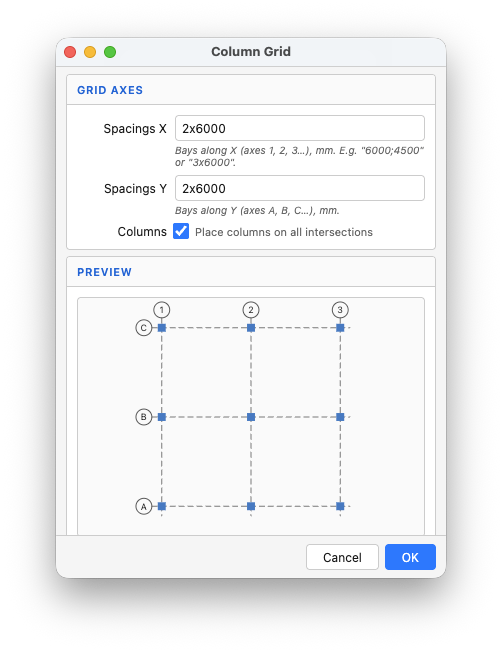
Axes are drawn as dashed construction lines that SketchUp’s inference will snap to, labelled 1, 2, 3… across and A, B, C… down, with bubbles at both ends.
The grid is one object
Section titled “The grid is one object”Axes live in a sub-group, columns sit inside the grid group, and the whole thing is one undo step. Right-click gives you:
| Grid Properties | change spacings and regenerate |
| Grid Columns Properties (n) | edit every column in the grid at once |
| Explode Grid | break it apart into loose axes and columns |
Parameters
Section titled “Parameters”| Field | Default | What it does |
|---|---|---|
| Section | Rectangle | rectangle, circle, or a profile family |
| Width / Depth | 300 × 300 mm | rectangular section |
| Diameter | 300 mm | round section |
| Height | wall height | of the active storey |
| Reference | Center | what the click point means |
| Rotation | 0° | around the reference point |
Defaults set by double-clicking the Column button apply to new columns, including those the grid places — so set the section once and the whole grid follows.
In IFC and in drawings
Section titled “In IFC and in drawings”Exports as IfcColumn with Qto_ColumnBaseQuantities and Pset_ColumnCommon.
Round columns get an exact πr² area, not a polygon approximation. A catalogue
profile is written into ObjectType, so HEB 240 survives the export.
Grids export as IfcGrid.
See also
Section titled “See also”- Beams — the same catalogue
- Foundations