
Your first IFC
Exporting is three steps, in order. SketchUp’s own IFC exporter does the geometry; two Archeform commands then add what it cannot write.
Skip the extra steps and you get a file that opens but is missing your windows, doors and material layers.
1. Check the model
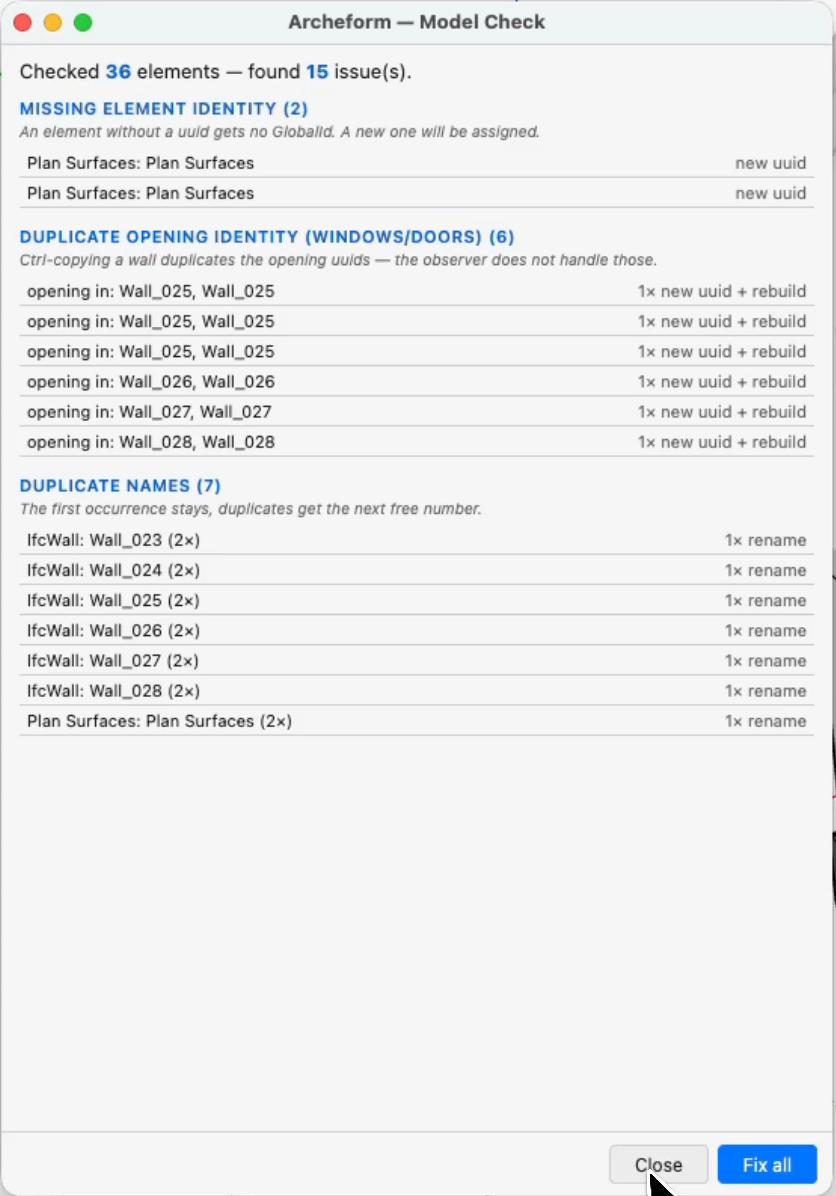
Section titled “1. Check the model”In the Project palette header, click the shield — Check model before IFC export.
It looks for the two things that quietly ruin an export:
- duplicate identities, usually from copying elements or whole storeys
- duplicate names within a type
Both matter because a viewer keys objects by their identifier. Two elements claiming the same one collapse into a single object, and you lose one of them without any error being shown.
The report lists what it found; confirming fixes it. The first occurrence is never renamed — your naming is left alone, only the collisions move.
2. Export from SketchUp
Section titled “2. Export from SketchUp”File → Export → 3D Model, choose IFC as the format, and save.
Save your SketchUp model first. Some of what follows reads from the model as it sits on disk.
3. Add what SketchUp leaves out
Section titled “3. Add what SketchUp leaves out”Two commands in Extensions → Archeform, run on the .ifc file you just wrote.
Both need SketchUp 2026 — see the note above.
Add Layers to IFC…
Section titled “Add Layers to IFC…”Writes your compositions as IfcMaterialLayerSet — every layer with its
thickness, category and priority.
SketchUp’s exporter writes no material entities at all, so without this step a 495 mm wall is a solid lump with a name.
Add Windows/Doors to IFC…
Section titled “Add Windows/Doors to IFC…”Writes the windows and doors, because SketchUp skips anything nested inside another classified object — and Archeform’s fills live inside the wall.
Without this step they are missing from the file completely. They look present in 3D only because they are part of the wall’s mesh.
It also offers to write openings: IfcOpeningElement plus the relations that
tie wall → opening → fill.
4. Look at it
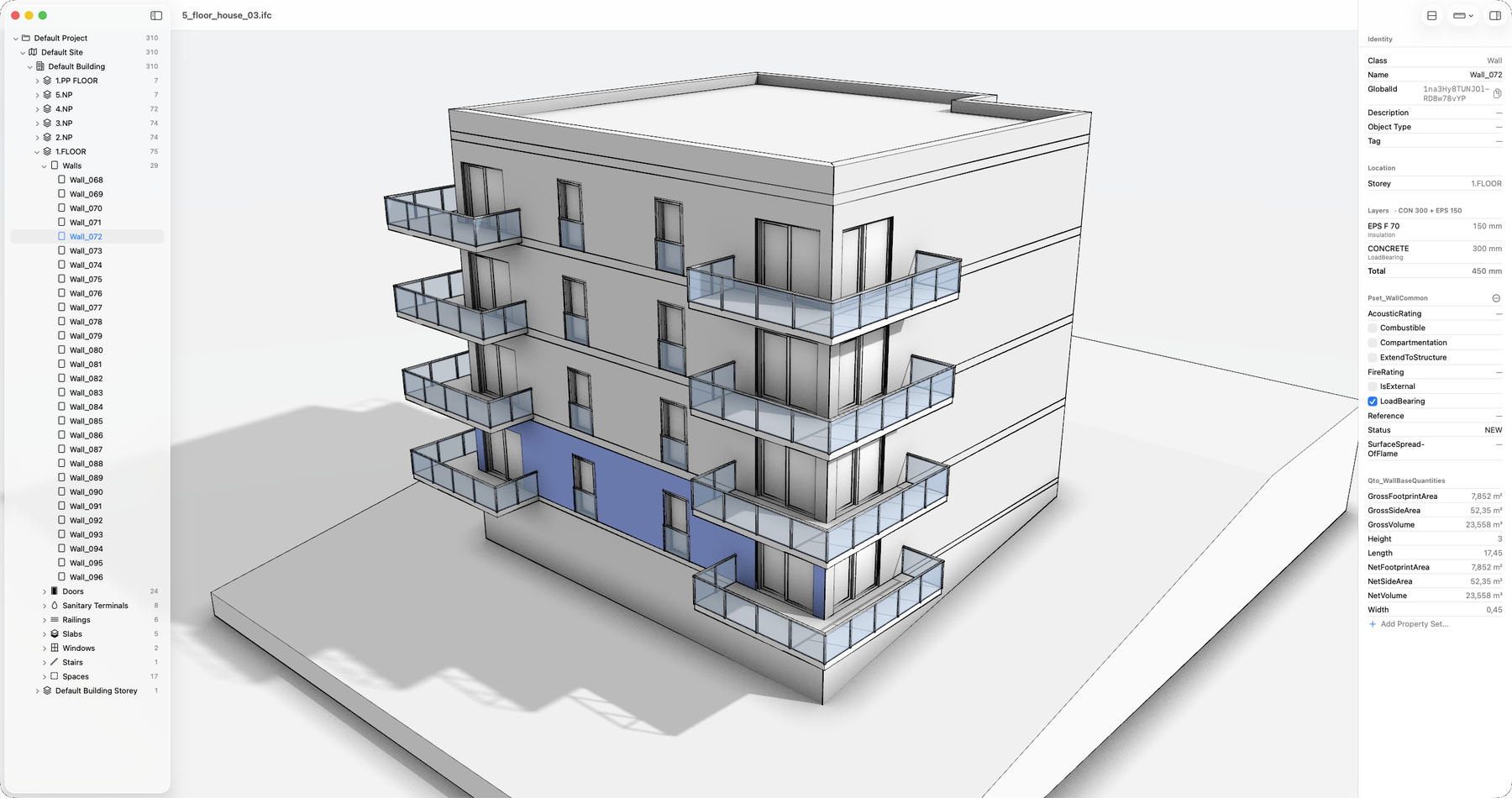
Section titled “4. Look at it”Open the result in your favourite BIM or IFC viewer before you send it anywhere. Pick one that shows material layers — not all of them do.
What to check:
- the storey tree, with elements in the right levels
- a wall’s Material tab — the layers should be listed with thicknesses
- windows and doors present in the tree, not just visible in 3D
- quantities and property sets on a couple of elements
Why it works this way
Section titled “Why it works this way”Post-processing the file looks like a workaround, and in a sense it is. The alternative is waiting for Trimble to extend their exporter, which would mean shipping IFC without material layers or openings in the meantime.
The entities written are ordinary IFC4 — nothing proprietary, nothing that needs Archeform at the other end.